The basics
What a full-page screenshot is
When you press your operating system's screenshot key, you get exactly what is on screen: the visible part of the page, plus the browser toolbar and whatever else happens to be open. Everything below the fold is missing.
A full-page screenshot is different. It records the entire length of the page, including everything you would normally have to scroll to see, as a single image. That makes it the right tool whenever the whole page matters:
- filing a bug report where the problem is halfway down a long form;
- sharing a design or landing page for review in one piece;
- keeping a record of an article, an order confirmation, or a receipt;
- comparing a page before and after a change.
Under the hood
How PageStitch captures the whole page
PageStitch is a Chrome extension built around one job. You start a capture, it does the scrolling, and you get the stitched result.
- 01
Start the capture. Open an ordinary web page and click the PageStitch toolbar button, or press Alt+Shift+S (Option+Shift+S on macOS), then choose a mode: Full page (or press Enter), Visible area, Select area, or Element, with an optional 3 or 10 second delay for full-page and visible-area captures. You can change the shortcut at
chrome://extensions/shortcuts. - 02
Let it scroll and stitch. PageStitch measures the page, scrolls through it one screen at a time, captures each view, and joins them into one image. The toolbar badge shows progress. Keep the tab active until it finishes. Your scroll position is restored afterwards.
- 03
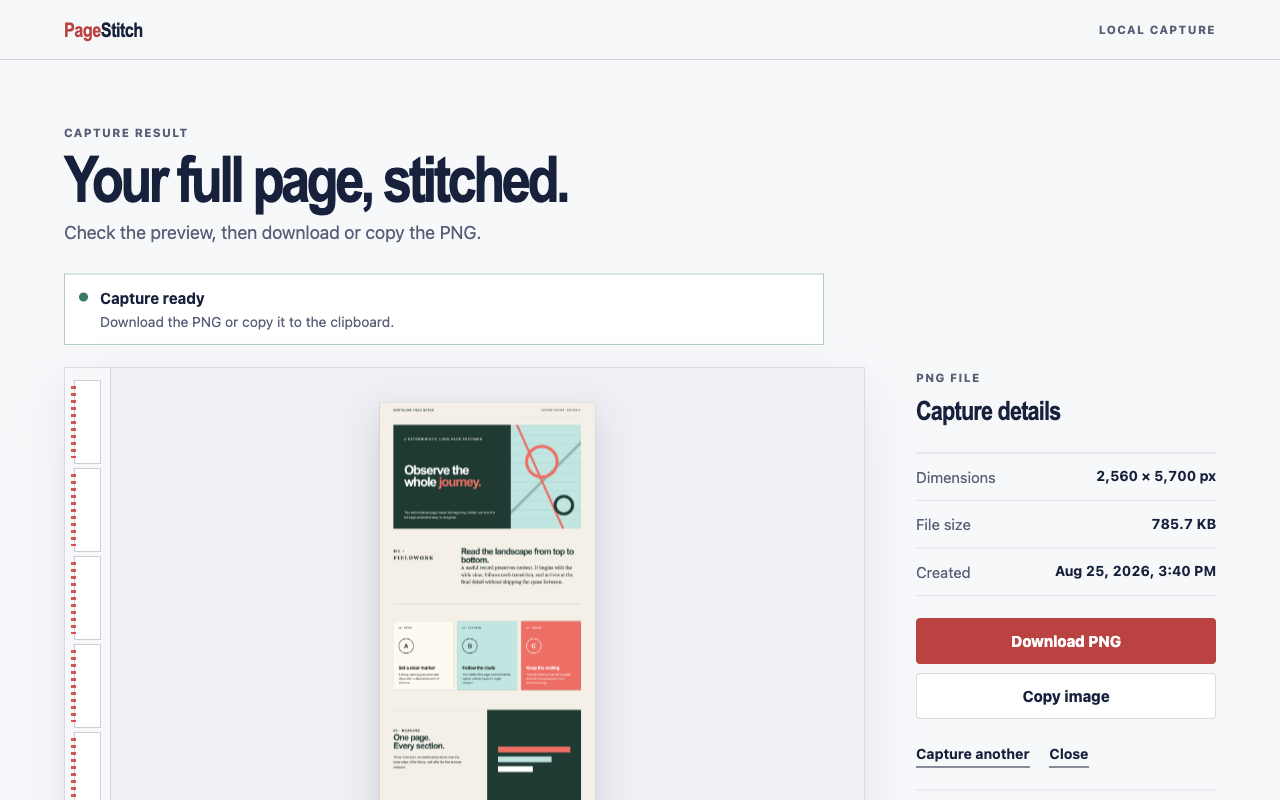
Preview the result. The finished capture opens in a local result tab so you can check it before you save anything.
It also handles pages that don't scroll in the usual way. Many web apps keep the page itself still and scroll a panel inside it instead. When the page itself fits in the window and a single scrollable area takes up at least half of it, PageStitch captures that area's full content, and the result tab tells you it did so with the note “Captured scrollable content”.
Getting the image out
Download, copy, edit, or save as PDF
Every capture is a PNG, a lossless format that keeps text and interface edges sharp. From the result tab you can:
- Download PNG. Files get useful names built from the site, the page title, and the local date and time, so a folder of captures stays readable.
- Copy image. Paste the capture straight into a chat, a ticket, or a document, or press Ctrl+C (⌘C on Mac). Chrome or your operating system can block clipboard access; if that happens, download the file instead.
- Edit image · Free. For a single-image capture, open the free editor to crop with drag handles, draw arrows and shapes, highlight, add text and emoji, blur private details, add padding, stamp the site and date (local or ISO format), or add a watermark. Undo and redo are always available.
- Download PDF. Save the capture, edited or not, as a PDF on one long page, A4, or US Letter, with clickable links and, on A4 and Letter, page numbers.
Very long or very wide pages can outgrow what one image in Chrome can hold. Rather than shrinking the page and losing detail, PageStitch splits the result into lossless, numbered PNG parts. You step through them with Previous part and Next part and download the ones you need. Editing is only available for single-image captures.
Private by design
Your screenshots stay on your device
Screenshots often contain things you would not want to hand to a stranger: dashboards, invoices, internal tools, messages. PageStitch does all of its capturing and stitching locally, inside Chrome. There is no account, no cloud storage, no analytics, and no remote code, and your captures are never uploaded.
It asks for three permissions, each with a narrow purpose:
activeTab: temporary access to the tab you choose, only after you click the button or press the shortcut;scripting: runs the packaged helper that measures and scrolls that page;offscreen: a hidden extension page where the pieces are stitched together on a canvas.
The details are in the privacy policy.
Clear boundaries
Where Chrome draws the line
Protected pagesChrome settings, the Chrome Web Store, other extension pages, and non-HTTP(S) URLs cannot be captured.
Changing layoutsPages that animate, load forever, or change as they scroll may not stitch perfectly.
Very large pagesBrowser canvas limits apply to unusually tall or wide results.
Good to know
Questions about full-page capture
Does it work in languages other than English?
Yes. The PageStitch interface is available in English, Spanish, French, Brazilian Portuguese, German, Arabic, and Japanese. Chrome picks the language from your browser settings.
Can I save as JPEG or PDF?
PDF, yes: select Download PDF on the result tab and choose one long page, A4, or US Letter; links are clickable and A4 and Letter pages can be numbered. JPEG, no: images are saved as PNG. For a print-style PDF with selectable text, Chrome's own print dialog can save one; the step-by-step guide explains when that makes sense.
Why does the tab need to stay active?
Chrome only captures the visible, active tab. If you switch tabs mid-capture, PageStitch stops safely instead of stitching the wrong pixels, and puts the page back as it was.
Keep reading