Method 1 · Built into Chrome
Chrome DevTools: “Capture full size screenshot”
Chrome's developer tools include a full-page screenshot command. It is built in and free, and you don't need to install anything. It is aimed at developers, so it is a little hidden, but it only takes a few keystrokes:
- 01
Open the page you want to capture.
- 02
Open DevTools with F12, or Ctrl+Shift+I on Windows, Linux, and ChromeOS (Cmd+Option+I on macOS).
- 03
Open the Command Menu with Ctrl+Shift+P (Cmd+Shift+P on macOS).
- 04
Type
screenshotand choose Capture full size screenshot. Chrome downloads a PNG of the whole page.
Good for: a quick one-off capture on a computer where you can't or don't want to add an extension. Because the command renders the page at its full height rather than scrolling it, some layouts can look slightly different from what you see on screen, for example sections sized to the height of the window. The command also captures the page as a whole, so content hidden inside an inner scrolling panel stays hidden.
Method 2 · Chrome extension
PageStitch: a menu and a shortcut
If you capture pages often, an extension saves the trip through DevTools. PageStitch scrolls the page the way you would, captures each screen, and stitches them into one PNG, all locally in Chrome.
- 01
Install PageStitch from the Chrome Web Store and pin it to the toolbar if you like.
- 02
Open an ordinary web page.
- 03
Click the PageStitch button, or press Alt+Shift+S (Option+Shift+S on macOS), then choose Full page (or press Enter). The menu also offers the visible area, a selected area, or one element. The shortcut can be changed at
chrome://extensions/shortcuts. - 04
Keep the tab active while the toolbar badge shows progress.
- 05
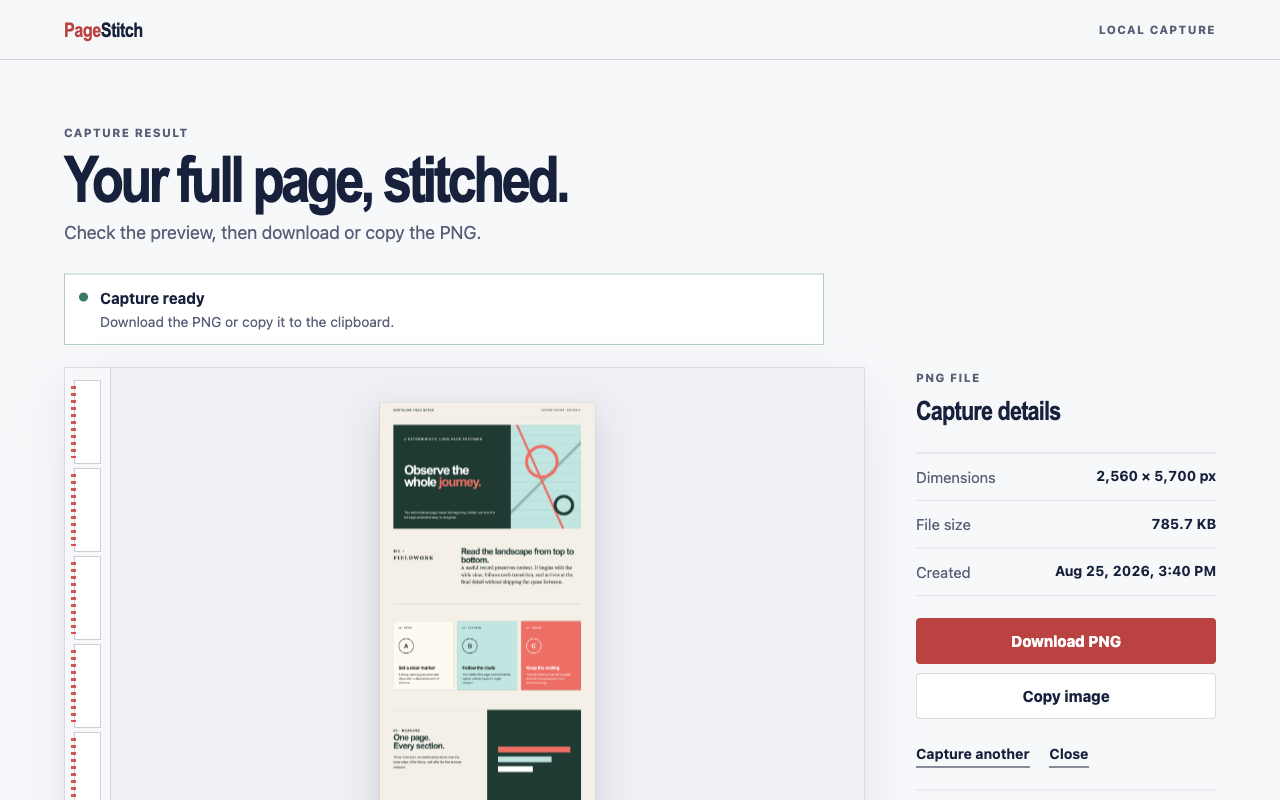
Check the preview in the result tab, then choose Download PNG or Copy image. Single-image captures can be cropped first.
Good for: regular use, bug reports, and pages that scroll inside a panel. When the page fits the window but one scrollable area takes up at least half of it, PageStitch captures that area's full content. Downloads get readable filenames built from the site, page title, and time. Very large pages are split into lossless, numbered PNG parts instead of being scaled down. Nothing is uploaded: there is no account, analytics, or remote code.
Method 3 · Also built in
Print to PDF
Sometimes you don't need an image at all. Chrome's print dialog can save any printable page as a PDF:
- 01
Press Ctrl+P (Cmd+P on macOS).
- 02
Set the destination to Save as PDF. Under More settings, turn on Background graphics if colors and images are missing.
- 03
Select Save.
Good for: articles, documentation, and receipts where you want selectable text or a file that prints well. Keep in mind that it is not a picture of the screen. The layout may reflow for print, content is split across pages, and some sites hide menus or other elements in their print styles.
When a page fights back
Tips for tricky pages
Lazy-loaded imagesMany pages only load images as you scroll near them. If pictures come out blank, scroll to the bottom and back to the top once, then capture.
Sticky headers and pop-upsClose cookie banners, chat bubbles, and sign-up pop-ups first so they don't cover content. Headers and bars that stay pinned while you scroll are a classic trouble spot for any capture method; if one looks out of place, try another of the methods above.
Inner scrolling areasWeb apps often scroll a panel instead of the page. PageStitch captures a single large scrollable area; complex nested scrollers may not stitch perfectly.
Changing layoutsPages that animate, load forever, or change as they scroll may not stitch perfectly. Pause videos and wait for the page to settle.
Protected pagesPageStitch cannot capture Chrome settings, the Chrome Web Store, other extension pages, or non-HTTP(S) URLs.
Good to know
Common questions
Which method should I use?
For an occasional capture, the DevTools command is right there and costs nothing. If you capture pages regularly or need to handle inner scrolling panels, an extension like PageStitch is quicker. If you want text you can select or print, save a PDF.
Can I screenshot an entire webpage without an extension?
Yes. Both the DevTools command and Print to PDF are part of Chrome.
Does PageStitch send my screenshots anywhere?
No. Capturing and stitching happen locally in Chrome. See the privacy policy for details.
Keep reading