The idea
What a scrolling screenshot is
An ordinary screenshot records what fits in the window. A scrolling screenshot keeps going: it moves down the page, captures each screen, and joins the pieces into one tall image, so you get content you would otherwise have to scroll to see.
Chrome's developer tools include a full-size screenshot command, but it renders the page at its full height instead of scrolling it. The guide to screenshotting an entire webpage covers that method. An extension like PageStitch does the scrolling for you, the way you would by hand.
Step by step
How PageStitch scrolls and stitches
- 01
You start it. Open an ordinary web page and click the PageStitch toolbar button, or press Alt+Shift+S (Option+Shift+S on macOS). The shortcut can be changed at
chrome://extensions/shortcuts. - 02
It measures the page. A packaged helper works out how tall and how wide the page is, including pages wider than the browser window.
- 03
It scrolls one screen at a time. The helper controls scrolling during capture, and Chrome captures each view. The toolbar badge shows progress. Keep the tab active until it finishes.
- 04
It stitches locally. The views are joined on a canvas in a hidden extension page, on your device.
- 05
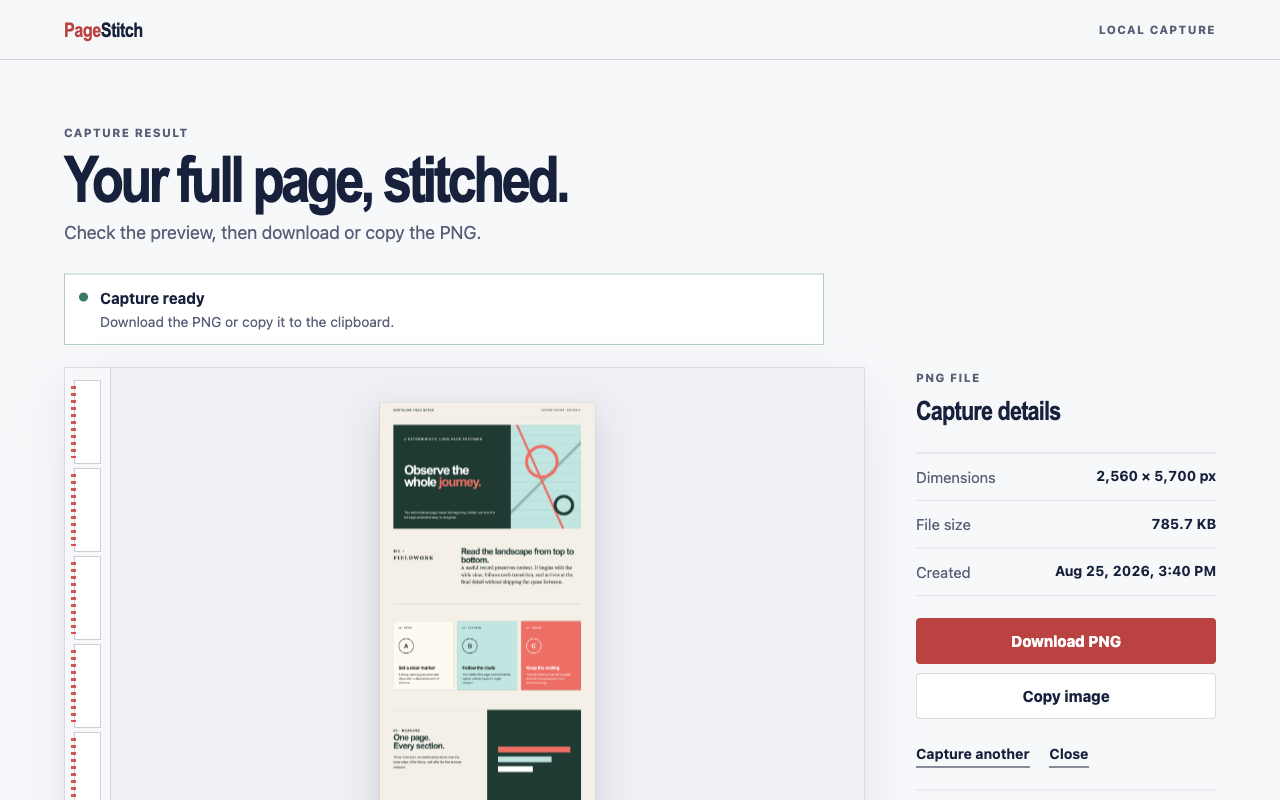
You check the result. The capture opens in a local result tab, where you can Download PNG, Copy image, or crop a single-image capture first.
Web apps
Pages that scroll inside a panel
Many web apps, such as mail clients, chat tools, dashboards, and documentation sites, keep the page itself still and scroll a panel inside it. A capture of the page alone would stop at the edge of that panel.
PageStitch looks for this case. When the page itself fits in the window and a single scrollable area takes up at least half of it, PageStitch scrolls that area instead and captures its full content. The result tab tells you it did so with the note “Captured scrollable content”.
Layouts with several competing scrollers, small scrolling boxes, or custom scrolling code are harder. Pages with nested or custom scrolling areas can produce incomplete or imperfect captures, so check the preview before you rely on it.
Afterwards
Your page is put back the way it was
To capture a page, PageStitch has to scroll it. When the capture ends, the helper restores the original page state, including your scroll position, so you can carry on reading where you were.
The same happens if a capture cannot finish. Chrome only captures the visible, active tab, so if you switch tabs mid-capture, PageStitch stops safely instead of stitching the wrong pixels, and puts the page back as it was.
Very long pages
When one image isn't enough: numbered PNG parts
Some pages are longer or wider than a single image in Chrome can hold. Rather than scaling the page down and losing detail, PageStitch splits the result into lossless, numbered PNG parts.
- Step through the parts in the result tab with Previous part and Next part.
- Download the parts you need. Each file gets a readable name built from the site, the page title, and the local date and time.
- Cropping is only available for single-image captures.
Clear boundaries
Where scrolling capture has limits
Protected pagesChrome system pages, the Chrome Web Store, other extension pages, and non-HTTP(S) URLs cannot be captured.
Changing layoutsPages that animate, load forever, or change as they scroll may not stitch perfectly.
Very large pagesBrowser canvas limits apply to unusually tall or wide results.
Good to know
Scrolling screenshot questions
Do I have to scroll the page myself?
No. Start the capture and PageStitch scrolls for you. Just keep the tab active until the badge shows it has finished.
Is a scrolling screenshot the same as a full-page screenshot?
They describe the same result: an image of the whole page, not just the window. The full-page screenshot guide covers the rest of the PageStitch workflow.
Are my captures uploaded anywhere?
No. Scrolling, capturing, and stitching all happen locally in Chrome. See how PageStitch keeps captures private and the privacy policy.
Keep reading